

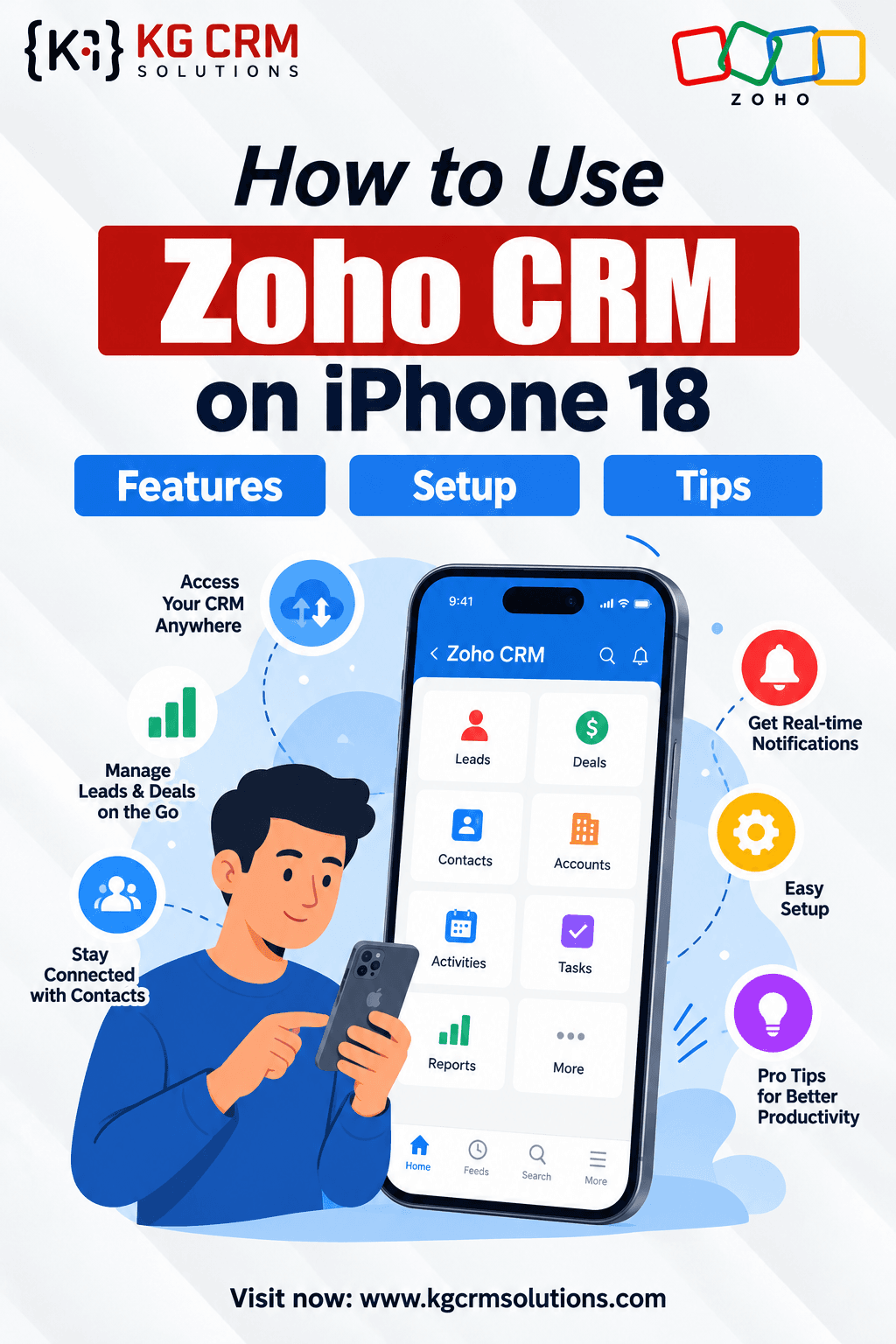
Managing customer relationships no longer requires you to sit in front of a desktop computer. With the Zoho CRM mobile app, sales teams, business owners, consultants, and field employees can access important CRM information directly from their smartphones.
If you are using an iPhone 18, iPhone 18 Pro, or iPhone 18 Pro Max, you can use Zoho CRM to manage leads, contacts, accounts, deals, tasks, meetings, calls, notes, and other CRM activities while working from almost anywhere.
For businesses already using Zoho CRM, the mobile application can make it easier to keep customer information updated, follow up with prospects, check sales opportunities, and stay connected with the sales pipeline.
This guide explains how to use Zoho CRM on the iPhone 18 series, how to set it up, what you can do from the mobile app, and how businesses can get more value from mobile CRM.
What Is Zoho CRM?
Zoho CRM is a customer relationship management platform designed to help businesses manage their sales activities, customer information, leads, contacts, accounts, deals, communication, and business processes.
Businesses can customize Zoho CRM according to their requirements by creating custom fields, modules, workflows, automation, reports, dashboards, and integrations.
The Zoho CRM mobile app extends CRM access to smartphones, allowing users to work with customer and sales information without being tied to a desktop.
For a sales representative, this means customer information can be reviewed before a meeting, a new lead can be added after a conversation, and a follow-up task can be created immediately after a customer interaction.
Can You Use Zoho CRM on iPhone 18?
Yes, Zoho CRM can be used through its mobile application on compatible iOS devices.
The iPhone 18, iPhone 18 Pro, and iPhone 18 Pro Max can be used for mobile CRM activities as long as the device, iOS version, and Zoho CRM application meet the current compatibility requirements.
The core Zoho CRM workflow is generally similar across the iPhone 18 family. Your available features can depend on your Zoho CRM edition, user permissions, organization configuration, and the current version of the mobile application.
Because mobile application features and operating-system requirements can change, users should keep both iOS and the Zoho CRM app updated.
Zoho CRM on iPhone 18 Series
The iPhone 18 family can be used as a mobile CRM workspace for different types of business users.
iPhone 18
The standard iPhone 18 can be used for everyday CRM activities such as:
- Viewing leads and contacts
- Managing accounts
- Checking deals
- Creating tasks
- Managing meetings
- Adding notes
- Updating customer information
- Checking relevant CRM information
iPhone 18 Pro
The iPhone 18 Pro can be used by sales professionals and business users who need frequent access to CRM information while travelling, attending meetings, or working remotely.
iPhone 18 Pro Max
The iPhone 18 Pro Max can also be used for the same core Zoho CRM activities. Its larger display can be useful for users who frequently review CRM information, dashboards, records, and other business data on their phone.
The CRM capabilities themselves depend primarily on Zoho CRM and your organization’s configuration, rather than simply the iPhone model.
How to Install Zoho CRM on iPhone 18
Getting started with Zoho CRM on an iPhone is straightforward.
Step 1: Open the App Store
Open the App Store on your iPhone 18, iPhone 18 Pro, or iPhone 18 Pro Max.
Search for the official Zoho CRM application.
Before installing it, check that the application is the official Zoho application and review the current compatibility information.
Step 2: Install the App
Tap the option to download and install the Zoho CRM application.
Once installation is complete, open the application.
Step 3: Sign In
Enter the credentials associated with your Zoho CRM account.
If your company uses an organization-level Zoho CRM account, use the account provided by your organization.
Depending on your organization’s security configuration, additional authentication may be required.
Step 4: Configure Permissions
The application may request access to certain iPhone capabilities depending on the features you use.
Review each permission and enable the permissions required for your workflow.
Step 5: Start Using Your CRM
After signing in, you can access the CRM modules and information available to your account.
Your organization may have customized the CRM interface, modules, fields, layouts, and permissions.
How to Use Zoho CRM on iPhone 18
Once Zoho CRM is installed and configured, you can use it for many everyday sales and customer-management activities.
1. Manage Leads
Leads are potential customers who may eventually become accounts or customers.
With Zoho CRM on your iPhone, you can review lead information and update relevant details while working remotely.
For example, a salesperson can meet a potential customer at an event and update the lead information immediately rather than waiting until they return to the office.
You can use your CRM workflow to maintain information such as:
- Lead name
- Company
- Phone number
- Email address
- Lead source
- Lead status
- Notes
- Follow-up activities
2. Manage Contacts
Contacts contain information about people associated with your customers, prospects, or business accounts.
Before a customer meeting, you can open the relevant contact and review available information.
After the meeting, you can update the record and add notes or follow-up activities.
This helps maintain a more complete customer history inside Zoho CRM.
3. Manage Accounts
Accounts represent organizations or companies in your CRM.
Mobile access allows sales representatives to review account information while travelling or visiting customers.
You can use account information to understand the customer relationship and connect relevant contacts, deals, activities, and other CRM records.
4. Manage Deals and Sales Opportunities
Deal management is one of the most important parts of CRM.
Sales representatives can use Zoho CRM on their iPhones to review sales opportunities and keep deal information updated.
For example, after speaking with a prospect, a salesperson can update:
- Deal stage
- Expected closing date
- Deal value
- Next activity
- Notes
- Customer requirements
Keeping this information updated gives the sales team a more accurate view of the pipeline.
5. Create Tasks and Follow-Ups
Sales often depends on consistent follow-up.
Instead of remembering every customer activity, you can create tasks inside Zoho CRM.
Examples include:
- Call the customer tomorrow
- Send a quotation
- Follow up after the demonstration
- Schedule a meeting
- Contact an inactive lead
- Check the status of a proposal
Creating these activities directly from your iPhone can help keep your CRM records current.
6. Manage Meetings and Calls
Customer meetings and calls can be associated with relevant CRM records.
After completing a customer interaction, you can update the CRM with the relevant information and create the next follow-up activity.
This creates a more structured sales process and reduces the chance of important customer interactions being missed.
7. Add Notes After Customer Meetings
Customer meetings often contain important information that should be recorded.
Instead of writing notes separately and updating the CRM later, users can add relevant information to CRM records as part of their workflow.
For example:
Customer requirement: Needs an automated quotation process.
Next action: Schedule a technical discussion.
Follow-up date: Next week.
Storing this information in CRM makes it easier for the sales team to understand the customer relationship.
8. Search Customer Information Quickly
When a CRM contains hundreds or thousands of records, searching for information becomes important.
The Zoho CRM mobile application allows users to access relevant CRM information from their phone rather than manually searching through spreadsheets or separate documents.
This can be particularly useful before customer calls and meetings.
Zoho CRM Mobile App for Sales Teams
Mobile CRM is particularly useful for sales teams that spend significant time outside the office.
A salesperson can:
- Open a customer record.
- Review previous information.
- Attend the meeting.
- Add meeting notes.
- Update the deal.
- Create a follow-up task.
- Continue with the next customer.
This creates a more connected sales process.
Instead of waiting until the end of the day to update CRM records, information can be entered closer to the time of the actual customer interaction.
Using Zoho CRM on iPhone for Field Sales
Field sales teams can benefit significantly from mobile CRM.
Consider a sales representative visiting several customers in one day.
Without mobile CRM, they may write information in a notebook and update the CRM later.
With Zoho CRM on an iPhone, they can update customer records after each visit.
For example:
Customer Visit → Meeting Notes → Deal Update → Follow-Up Task → CRM Record Updated
This creates a continuous flow of information between field activities and the central CRM system.
Zoho CRM Automation and Mobile Users
Mobile CRM becomes even more useful when the underlying Zoho CRM system is properly automated.
Businesses can configure automation for processes such as:
- Lead assignment
- Follow-up reminders
- Sales notifications
- Workflow actions
- Email notifications
- Record updates
- Approval processes
- Task creation
For example, when a new lead is created, an automated workflow can assign the lead to the appropriate salesperson according to the organization’s business rules.
The salesperson can then access the assigned lead from the mobile CRM application.
Zoho CRM Integration With Other Applications
Many businesses do not use CRM as a standalone system.
They may need to connect Zoho CRM with:
- Accounting software
- Marketing platforms
- Websites
- E-commerce systems
- Payment systems
- Customer portals
- ERP systems
- Internal applications
- Communication platforms
- Other Zoho applications
Zoho CRM integration can help synchronize information between these systems.
For example, a website lead can be sent to Zoho CRM automatically. Once the lead enters CRM, automation can assign it to a salesperson and create the required follow-up activity.
Zoho CRM API Integration
For businesses with complex integration requirements, APIs can be used to connect Zoho CRM with third-party applications.
A custom integration can help businesses:
- Transfer customer data
- Synchronize records
- Create CRM records automatically
- Update existing records
- Trigger workflows
- Connect external applications
- Automate repetitive processes
Businesses may also require API migration from older versions to newer API versions, depending on their existing integration architecture.
Proper API planning is important because poorly designed integrations can create duplicate records, synchronization problems, and data inconsistencies.
Zoho CRM Customization for Mobile Workflows
Every business has different sales processes.
A real estate company may need property information.
An insurance company may require policy-related fields.
A construction company may need project and quotation information.
A transportation company may require customer and shipment information.
Zoho CRM can be customized to support different business processes.
Customization may include:
- Custom modules
- Custom fields
- Page layouts
- Validation rules
- Workflow automation
- Custom functions
- Reports
- Dashboards
- User permissions
- Business-specific processes
A well-designed CRM can make mobile data entry easier because users only see the information relevant to their workflow.
Zoho CRM Security on iPhone
Customer and business data should be handled carefully when using CRM on mobile devices.
Businesses should follow their internal security policies and use the security controls available through their Zoho environment and iPhone.
Recommended practices include:
- Use a strong account password.
- Enable available multi-factor authentication.
- Keep iOS updated.
- Keep the Zoho CRM application updated.
- Use device security features.
- Avoid sharing account credentials.
- Review user permissions regularly.
- Remove access for users who no longer require it.
Organizations should also configure Zoho CRM permissions according to employee responsibilities.
A salesperson does not necessarily need the same access as an administrator.
How to Get Better Results From Zoho CRM on iPhone 18
Installing the mobile app is only the first step. The quality of the CRM setup has a major impact on how useful the application becomes.
Keep CRM Data Clean
Avoid duplicate contacts, incomplete records, and outdated information.
Clean CRM data makes mobile searches and customer interactions more useful.
Use Relevant Fields
Do not force salespeople to enter unnecessary information.
Keep the CRM process practical and focused on information that actually supports the business.
Automate Repetitive Activities
Use Zoho CRM automation wherever appropriate.
Automation can reduce manual work and help sales teams concentrate on customer interactions.
Update Records Immediately
Whenever possible, update CRM records immediately after a customer call or meeting.
This helps maintain accurate customer information.
Train Your Team
Even a powerful CRM platform will not deliver its full value if users do not understand how to use it.
Provide employees with practical training based on their daily responsibilities.
iPhone 18 vs iPhone 18 Pro vs iPhone 18 Pro Max for Zoho CRM
From a CRM functionality perspective, the main consideration is whether the device supports the required iOS version and Zoho CRM application.
| iPhone | Typical Zoho CRM Use |
| iPhone 18 | Leads, contacts, deals, tasks, meetings and everyday CRM activities |
| iPhone 18 Pro | Mobile sales management, CRM access, customer meetings and business workflows |
| iPhone 18 Pro Max | CRM management, customer information, sales activities and mobile business workflows |
The available CRM features are primarily determined by Zoho CRM, the mobile application, your Zoho edition, permissions, and organization configuration.
Therefore, businesses should focus on their CRM requirements rather than assuming that a particular iPhone model provides additional Zoho CRM functionality.
Common Zoho CRM on iPhone 18 Questions
Can I use Zoho CRM on iPhone 18?
Yes, Zoho CRM can be accessed through its mobile application on compatible iOS devices.
Does Zoho CRM work on iPhone 18 Pro?
Compatible iPhone 18 Pro users can use the Zoho CRM mobile application, subject to the current iOS and application requirements.
Can I use Zoho CRM on iPhone 18 Pro Max?
Yes, compatible iPhone 18 Pro Max users can use Zoho CRM for supported mobile CRM activities.
Can I manage leads from my iPhone?
Yes. Users with the required CRM permissions can access and manage lead information through the mobile application.
Can I update deals from my iPhone?
Yes. Sales users can manage supported deal information from the Zoho CRM mobile application.
Can I create follow-up tasks?
Yes. Creating and managing CRM activities such as tasks and follow-ups is an important part of mobile CRM usage.
Do I need a separate CRM account for my iPhone?
Generally, no. You can sign in to the mobile application using your existing Zoho CRM account.
Can Zoho CRM be customized for my business?
Yes. Zoho CRM supports customization and automation to accommodate different business processes.
When Should a Business Consider Zoho CRM Consulting?
The standard Zoho CRM application may be enough for basic CRM requirements.
However, businesses may need professional help when they require:
- Complex CRM customization
- Third-party integrations
- API development
- Data migration
- CRM migration
- Advanced workflow automation
- Custom functions
- Zoho Creator applications
- Zoho Analytics reporting
- Multiple Zoho application integrations
- Existing system integration
In these situations, a Zoho CRM consultant can help analyze the business process, design the CRM structure, configure the system, develop integrations, migrate data, and provide ongoing support.
Final Thoughts
The Zoho CRM mobile app gives businesses a practical way to stay connected with customers, leads, deals, and sales activities while working away from a desktop.
Whether you are using an iPhone 18, iPhone 18 Pro, or iPhone 18 Pro Max, you can use Zoho CRM for supported mobile activities such as managing leads and contacts, checking deals, adding notes, scheduling activities, and keeping customer information updated.
However, the real value of mobile CRM comes from the system behind the application. A properly configured CRM with automation, customization, integrations, clean data, and well-defined business processes can make mobile CRM much more useful for sales and service teams.
If your business needs help with Zoho CRM implementation, customization, automation, integration, API development, data migration, Zoho Creator development, or Zoho Analytics, KG CRM Solutions can help design and implement Zoho solutions around your business requirements.
Read Related blogs: Zoho APAC Events 2026

About the Author
Parveen Kumar | Founder @ KG CRM Solutions
Parveen Kumar is the founder of KG CRM Solutions, a Zoho Authorised Partner based in Mohali, Punjab. He has been building Zoho systems for businesses across India, the UK, Australia, Canada, and the US for over 8 years, specialising in Zoho CRM, Zoho Creator, Deluge scripting, custom integrations, and widget development.