

Migadu to Zoho Mail Migration: How to Move Emails, Users, Aliases and DNS Without Downtime
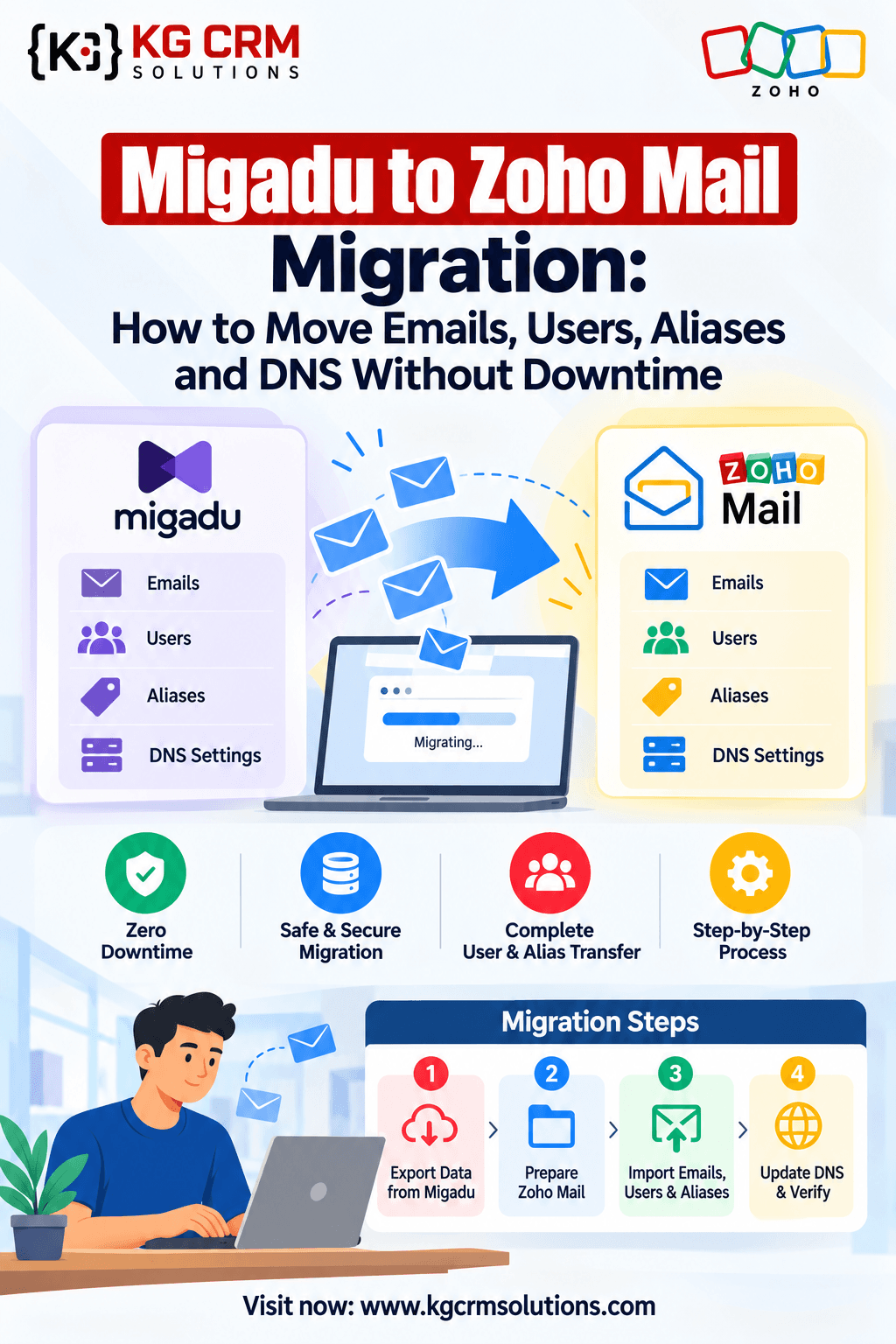
Moving business email is one of the riskiest small projects a company does. A missed alias or a wrong MX record can mean lost customer emails. If you are planning a Migadu to Zoho Mail migration, this guide covers the full process: planning, user setup, IMAP migration, DNS cutover and post-migration checks.
| In short: Zoho Mail migrates Migadu mailboxes over IMAP. You create the users in Zoho first, migrate the mail while Migadu is still live, and change DNS only at the end. |
Table of Contents
- Why businesses move from Migadu to Zoho Mail
- How the migration works
- What can and cannot be migrated
- Before you start: preparation checklist
- Step-by-step migration process
- DNS cutover: MX, SPF, DKIM, DMARC
- Recreating aliases, forwards and mailing lists
- Post-migration verification
- Common problems and fixes
- Sample migration timeline
- Frequently asked questions
- Get expert help
Why Move from Migadu to Zoho Mail?
Migadu is a capable, developer-friendly email host. Businesses usually outgrow it for reasons that have little to do with email quality:
- A wider business suite. Zoho Mail connects natively with Zoho CRM, Zoho Books, Zoho Desk, Zoho Campaigns and Zoho Workplace apps.
- Admin control. Zoho’s Admin Console offers user management, groups, policies, audit logs, and email retention and security controls.
- Collaboration tools. Calendar, contacts, tasks, notes and file sharing sit in the same workspace.
- Mobile and desktop apps. Zoho provides its own apps, which suits non-technical staff.
- CRM integration. Email conversations can sit alongside leads, contacts and deals in Zoho CRM.
If you already run, or plan to run, Zoho CRM, consolidating email into the same ecosystem removes a lot of manual work.
How the Migration Works
Migadu has no one-click export. Zoho Mail’s migration tool pulls mail from Migadu over IMAP. Zoho connects to each Migadu mailbox, reads the folders and messages, and copies them into the matching Zoho mailbox. This has three practical consequences:
- Each mailbox needs its own credentials. You’ll need the password for every Migadu mailbox, or you can reset them temporarily before migration.
- Mail is copied, not moved. Your Migadu data stays intact, which makes rollback safe.
- Migration can run before the DNS switch. Users keep receiving mail on Migadu while history copies to Zoho.
Typical Migadu IMAP settings are imap.migadu.com, port 993, SSL/TLS. Confirm these in your Migadu admin panel before starting.
What Can and Cannot Be Migrated
| Item | Migrated by IMAP? | Notes |
| Emails and folders | Yes | Includes sent, drafts and custom folders |
| Attachments | Yes | Part of the messages |
| Read/unread status | Generally yes | Spot-check after migration |
| Aliases | No | Recreate manually in Zoho |
| Forwarding rules | No | Recreate manually |
| Mailing lists | No | Rebuild as Zoho Groups |
| Sender identities | No | Recreate as aliases or send-as addresses |
| Email client settings | No | Users must reconfigure their devices |
| Contacts and calendars | Not applicable | Migadu is email-focused, so there is usually little to move. Export anything held in a mail client separately |
Before You Start: Preparation Checklist
A careful audit prevents most migration problems.
1. Inventory your Migadu setup
- All domains and the mailboxes on each
- Mailbox sizes (this drives migration time)
- Aliases, identities, forwardings and mailing lists
- Which addresses are real mailboxes and which are just routing
- Applications that send mail through Migadu SMTP (website forms, CRM, invoicing tools, scanners, monitoring)
2. Collect credentials
Gather the password for every mailbox, or reset them in the Migadu admin panel.
3. Choose your Zoho plan and data center
- Confirm your Zoho plan supports IMAP migration, and check whether you need a paid plan for your user count.
- Choose the data center that matches your region (for example zoho.com, zoho.in, zoho.eu). This choice affects your MX and SPF values later, and it is hard to change afterwards.
4. Lower your DNS TTL
At least 24 to 48 hours before cutover, reduce the TTL on your MX records to around 300 seconds. This lets the switch propagate quickly, and rolls back quickly if needed.
5. Plan the timing
Do the DNS cutover outside business hours, ideally early in the week so any issue gets fixed during working days.
Step-by-Step Migration Process
Step 1: Create your Zoho Mail organization and add your domain
Sign up for Zoho Mail, add your domain, and verify ownership. Zoho offers verification by TXT record, CNAME record or HTML file. TXT is the most common. Do not change your MX records yet. Verification does not require it.
Step 2: Create users in Zoho Mail
Create every mailbox that exists in Migadu, using identical addresses where possible (for example sales@company.com). Matching addresses make user mapping simple and keep things unchanged for customers. For many users, Zoho’s bulk import (CSV) saves time.
Step 3: Run a test migration with one mailbox
Choose a low-risk mailbox, such as an internal or small account. In the Zoho Admin Console, open the migration section and choose IMAP migration. Enter the Migadu server details and the mailbox credentials, then map it to its Zoho account. Check the result for:
- Authentication success
- Complete folder structure
- Message and attachment counts
- Date accuracy
Step 4: Migrate all mailboxes
After a clean test, add the remaining mailboxes. Options worth considering:
- Date filters: migrate recent mail first (for example the last 12 months) and older mail later.
- Staged batches: migrate heavy users, such as sales and management, in separate batches.
- Folder exclusions: skip Junk and Trash if you do not need them.
For very large mailboxes (tens of gigabytes), consider a dedicated IMAP sync tool such as imapsync, or ask a migration specialist, since throttling and timeouts become more likely.
Step 5: Do a delta sync before cutover
Mail arrives in Migadu while the first migration runs. Just before the DNS switch, run a second pass to copy anything new, so no messages fall into a gap.
Step 6: Update DNS records (cutover)
See the next section. This is the moment mail starts arriving in Zoho.
Step 7: Reconfigure devices and applications
Users must update Outlook, Apple Mail, Thunderbird and mobile accounts to Zoho’s servers or install the Zoho Mail app. Update every system that sends email through Migadu SMTP (website forms, CRM, billing software and so on) to use Zoho SMTP or an app-specific password.
DNS Cutover: MX, SPF, DKIM and DMARC
Use the exact values shown in your Zoho Admin Console. They depend on your data center. As an example, Zoho’s MX records for the global (.com) data center follow this pattern:
| Type | Host | Value | Priority |
| MX | @ | mx.zoho.com | 10 |
| MX | @ | mx2.zoho.com | 20 |
| MX | @ | mx3.zoho.com | 50 |
Other regions use different hostnames (for example, .in for India), so do not copy values from a generic guide.
Remove the old Migadu records, otherwise mail may split between two providers:
- Migadu MX records
- Migadu’s SPF include
- Migadu DKIM records
- Any Migadu verification or autoconfig records you no longer need
SPF: Keep a single SPF record per domain, containing Zoho’s include (and any other legitimate senders such as your CRM or newsletter tool). Two separate SPF records break authentication.
DKIM: Generate the DKIM key in Zoho Mail, then publish the TXT record at your DNS host and activate it in Zoho.
DMARC: Start with a monitoring policy such as p=none and a reporting address. Once reports show clean authentication, move to quarantine and then reject. Do not jump straight to reject.
After DNS changes, allow time for propagation, then send test emails in both directions and to Gmail and Outlook.com to confirm delivery and authentication.
Recreating Aliases, Forwards and Mailing Lists
Aliases are the most commonly missed part of a Migadu migration, because Migadu handles aliases, identities, forwardings and mailing lists separately, and none of them transfer over IMAP. Map each one to its Zoho equivalent:
| Migadu | Zoho Mail equivalent |
| Alias | Email alias on a user |
| Identity (send-as) | Send-as alias |
| Forwarding | Forwarding rule or alias |
| Mailing list | Zoho Group |
| Catch-all | Catch-all setting, if enabled on your plan |
Standard business addresses (info@, sales@, support@, billing@, accounts@) deserve special attention. Decide for each whether it is a mailbox, an alias or a group, because that choice affects who can reply and who sees the conversation.
Post-Migration Verification
Check these within the first 48 hours:
- Incoming mail reaches every mailbox, including aliases and groups
- Outgoing mail passes SPF, DKIM and DMARC (inspect headers in a test message)
- Message counts match between Migadu and Zoho for key mailboxes
- Sent items, older folders and attachments open correctly
- Website forms, CRM and billing emails still send
- Mobile and desktop clients are working for every user
Keep your Migadu account active for a few weeks after cutover as a safety net, and cancel only when everyone confirms nothing is missing.
Common Problems and Fixes
| Problem | Likely cause | Fix |
| IMAP authentication fails | Wrong password, or IMAP disabled | Reset the password and recheck server settings |
| Folders missing | Folder mapping or exclusion setting | Re-run migration with the correct folder selection |
| Duplicate emails | Migration run twice without de-duplication | Check duplicate handling and avoid overlapping jobs |
| Migration very slow | Large mailbox or provider throttling | Use date filters or batches; run off-peak |
| Mail not arriving after cutover | Old MX records still present, or DNS not propagated | Remove Migadu MX records; wait for TTL; recheck |
| Emails going to spam | Missing or duplicate SPF, DKIM not active | Fix SPF to a single record, activate DKIM |
| Website forms not sending | App still points to Migadu SMTP | Update SMTP host, port and credentials |
Sample Migration Timeline
| When | Task |
| Week 1 | Audit, Zoho setup, domain verification, user creation |
| Week 1 to 2 | Test migration, then main migration in batches |
| 48 hours before cutover | Lower DNS TTL |
| Cutover day | Delta sync, change MX, SPF, DKIM, DMARC; send tests |
| Days 1 to 7 | Device setup, app SMTP updates, verification |
| Weeks 2 to 4 | Monitor, then cancel Migadu |
Small teams can finish in days. Larger organizations with big mailboxes should allow several weeks.
Frequently Asked Questions
Can I migrate from Migadu to Zoho Mail without downtime?
Yes. Migrate mail while Migadu is still active, run a final delta sync, and change MX records at the end. Lowering the TTL beforehand keeps any gap very short.
Will my old emails be copied to Zoho Mail?
Yes, emails and folders are copied over IMAP. Your original Migadu mailbox stays intact until you remove it.
Do aliases and mailing lists migrate automatically?
No. Recreate Migadu aliases and forwardings as Zoho aliases, and mailing lists as Zoho Groups.
Do I need each user’s password?
For IMAP migration, you need credentials for every mailbox, or you can reset them in Migadu before migrating.
How long does a Migadu to Zoho Mail migration take?
It depends on mailbox sizes, the number of users and connection speed. Small teams can finish in a day or two. Large mailboxes take longer, so plan batches.
What should I do with SPF, DKIM and DMARC?
Keep one SPF record that includes Zoho, enable DKIM in Zoho and publish its record, and start DMARC at p=none before tightening it.
Can I keep the same email addresses?
Yes. Because the domain stays the same, your addresses do not change. Only the hosting provider does.
Need Help With Your Migadu to Zoho Mail Migration?
Email migration looks simple until a missing alias, an unauthenticated sender or a broken form sends customer mail astray. KG CRM Solutions provides Zoho consulting, implementation, migration, integration, customization, automation and support for businesses of all sizes. We handle the audit, user mapping, migration, DNS cutover and post-migration checks, so your team keeps working normally.
Schedule a meeting with KG CRM Solutions
Running or planning Zoho CRM? Ask us about Zoho CRM implementation, integration and customization so your email and customer data work together from day one.
Final Thoughts
A Migadu to Zoho Mail migration is straightforward when you follow the right order: audit, prepare Zoho, test one mailbox, migrate in batches, sync the final changes, switch DNS, then verify. Do that, and customers will not notice the move.
Read Related blogs: Zoho CRM on iphone-18

About the Author
Parveen Kumar | Founder @ KG CRM Solutions
Parveen Kumar is the founder of KG CRM Solutions, a Zoho Authorised Partner based in Mohali, Punjab. He has been building Zoho systems for businesses across India, the UK, Australia, Canada, and the US for over 8 years, specialising in Zoho CRM, Zoho Creator, Deluge scripting, custom integrations, and widget development.